Image 1 of 3
 Image 2 of 3
 Image 3 of 3
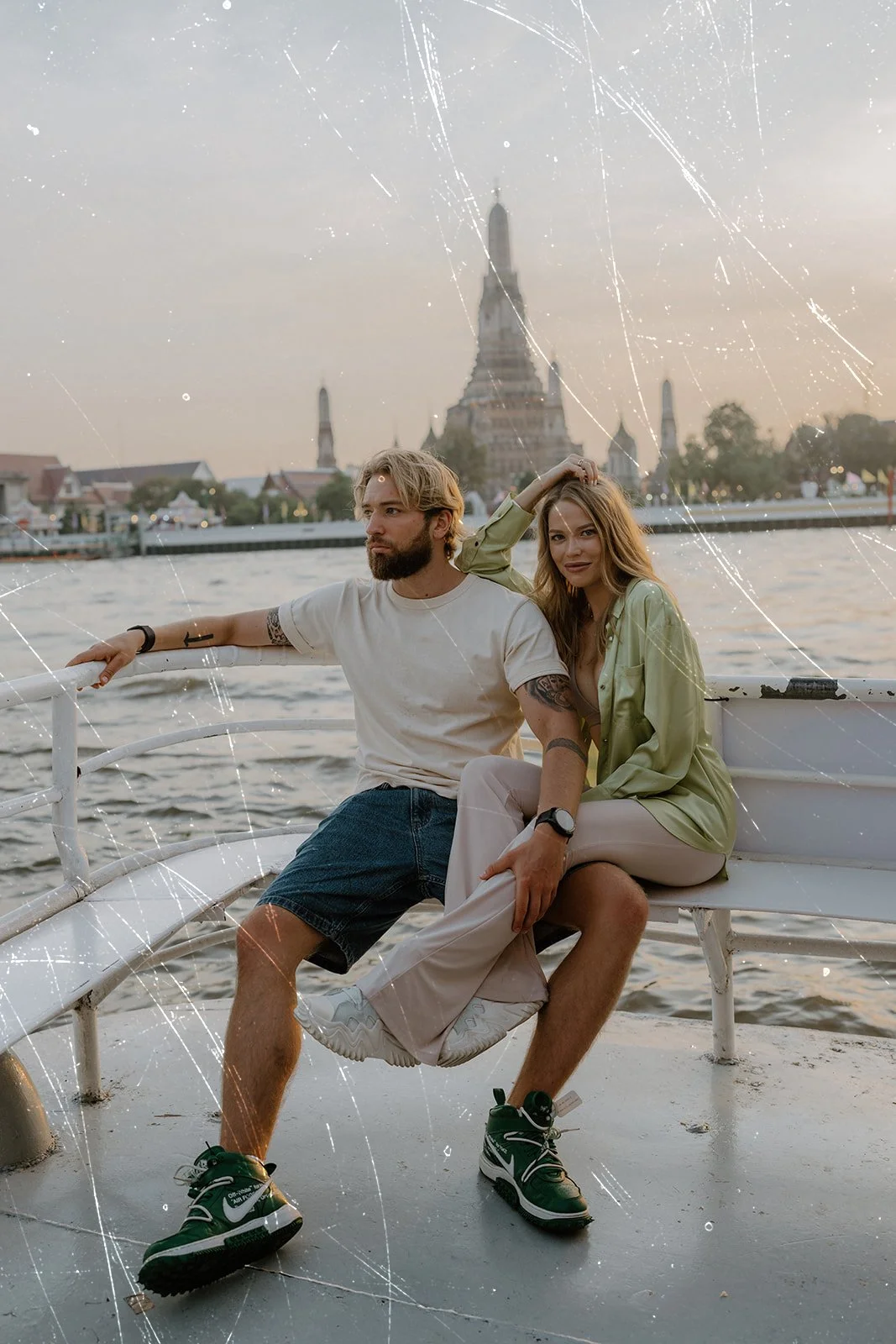
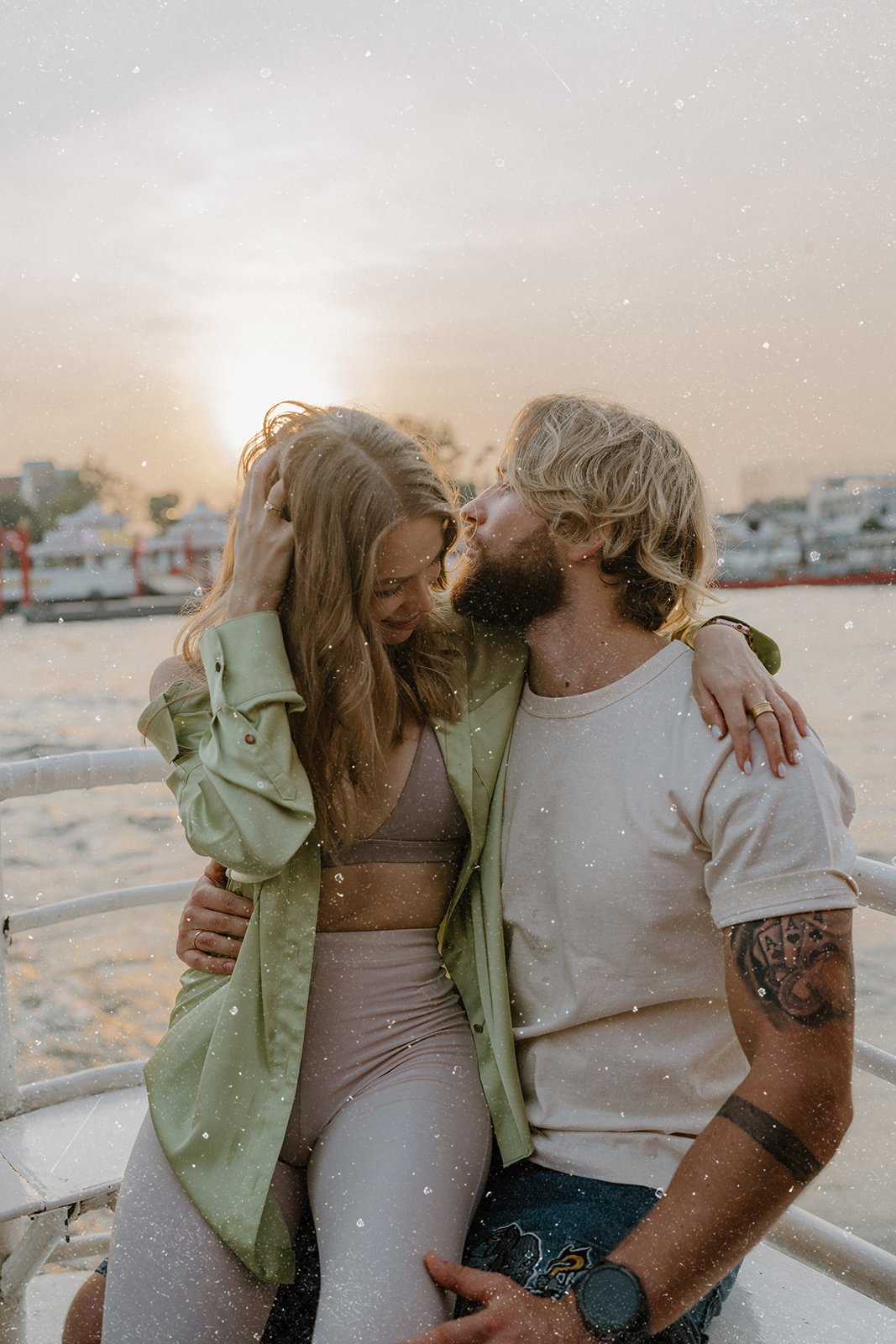
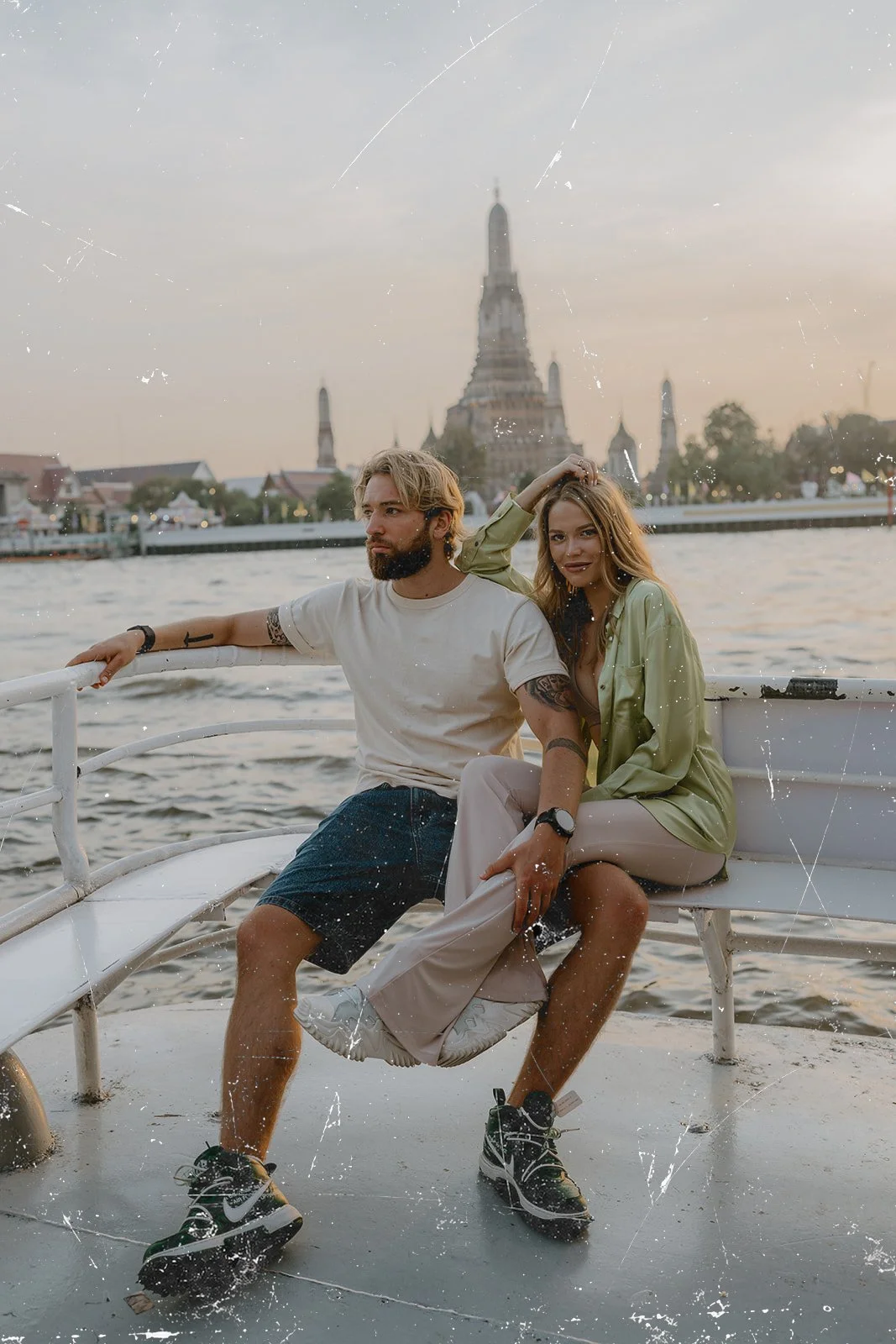
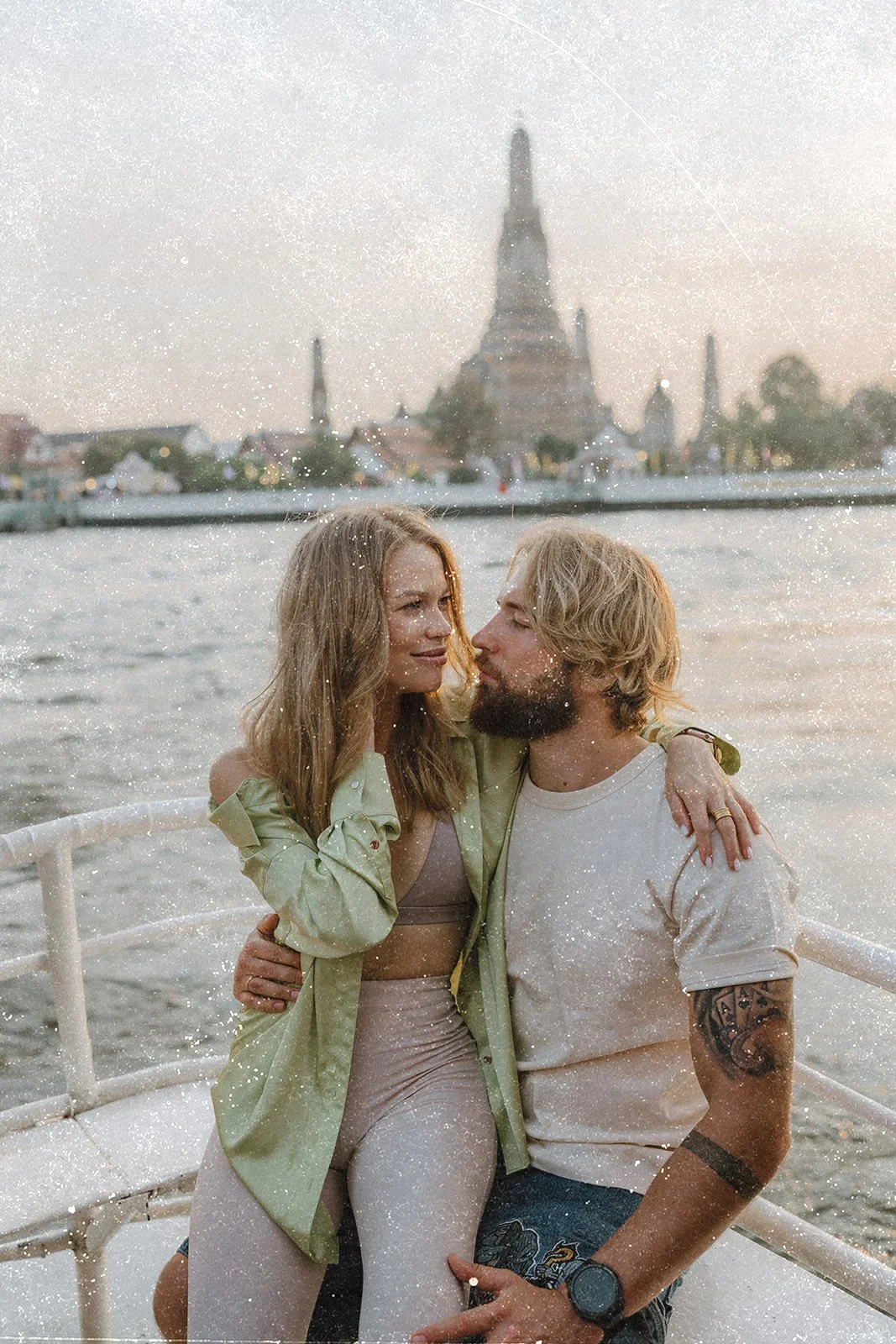
Add soft, nostalgic character to your photography with this collection of 15 original analog-inspired texture overlays. Featuring natural film grain, subtle light leaks, aged emulsion, muted color shifts, and black-and-white variations, these textures are designed to enhance your images without overpowering them.
Perfect for wedding, fashion, portrait, and editorial photography.
FEATURES
15 original texture overlays
PNG format
5500 × 4000 pixels
High-resolution files
Color and black-and-white variations
Easy to apply and customize
HOW IT WORKS
Open your photo in Photoshop.
Place one of the textures above your photo.
Select a blending mode. I usually use “Lighten,” “Screen,” “Soft Light,” or “Multiply.”
Adjust the texture’s opacity until you achieve your desired effect.
You can also experiment by layering multiple textures, changing the exposure or curves, adding a gradient map, or masking the texture away from certain areas.
PLEASE NOTE
This is a digital texture pack. No physical product will be shipped. Final results may vary depending on your image, editing style, blending mode, and opacity settings.
NEED HELP?
Feel free to contact me if you have any questions or need help using the textures. I’m always happy to help!
Add soft, nostalgic character to your photography with this collection of 15 original analog-inspired texture overlays. Featuring natural film grain, subtle light leaks, aged emulsion, muted color shifts, and black-and-white variations, these textures are designed to enhance your images without overpowering them.
Perfect for wedding, fashion, portrait, and editorial photography.
FEATURES
15 original texture overlays
PNG format
5500 × 4000 pixels
High-resolution files
Color and black-and-white variations
Easy to apply and customize
HOW IT WORKS
Open your photo in Photoshop.
Place one of the textures above your photo.
Select a blending mode. I usually use “Lighten,” “Screen,” “Soft Light,” or “Multiply.”
Adjust the texture’s opacity until you achieve your desired effect.
You can also experiment by layering multiple textures, changing the exposure or curves, adding a gradient map, or masking the texture away from certain areas.
PLEASE NOTE
This is a digital texture pack. No physical product will be shipped. Final results may vary depending on your image, editing style, blending mode, and opacity settings.
NEED HELP?
Feel free to contact me if you have any questions or need help using the textures. I’m always happy to help!